From scan to searchable PDF, on your own computer

A firm’s scans look like documents but are photographs: you cannot search or copy them. IureOCR recognizes the text on your computer, without sending the file to the cloud, and leaves a PDF identical to the original but searchable.
Every firm has a folder of PDFs that are really photographs: the contract reception scanned, the file that arrived from another office, the receipt somebody shot with a phone. They look fine, but you cannot search them, copy a paragraph or index them. And when the document is confidential, uploading it to a cloud service to “recognize” it is not always an option.
IureOCR is a desktop app Eduardo Llaguno built for exactly that: it recognizes the text on your own computer with Tesseract and leaves a PDF that looks identical to the original but with searchable text.
1. Recognize the text on your machine, not someone else’s
Recognition runs locally: neither the document nor the text is sent anywhere. An Iurefficient account is only needed if you want to save the result there. For sensitive material (a lawsuit filing, an expert report, a contract with prices) that removes any doubt about where the file ended up.
2. Keep the image and add the text underneath
The resulting PDF keeps the scanned image and adds an invisible text layer on top: it looks like the original, can be searched and copied, and a plain .txt is saved too. It matters that the result looks like the original, because in a case file what counts is what the other party signed, not a retranscription.
3. Process a whole case file without repeating work
Drag the files in (PDFs or JPG, PNG, TIFF, BMP, WEBP images) and they join a queue with per-page progress. PDFs that already have text are skipped instead of being processed again (the same rule the server uses: fewer than 100 characters in the first three pages means it needs recognition), though you can force it. Opening a file does not start recognition by itself: you can look at it first and decide.
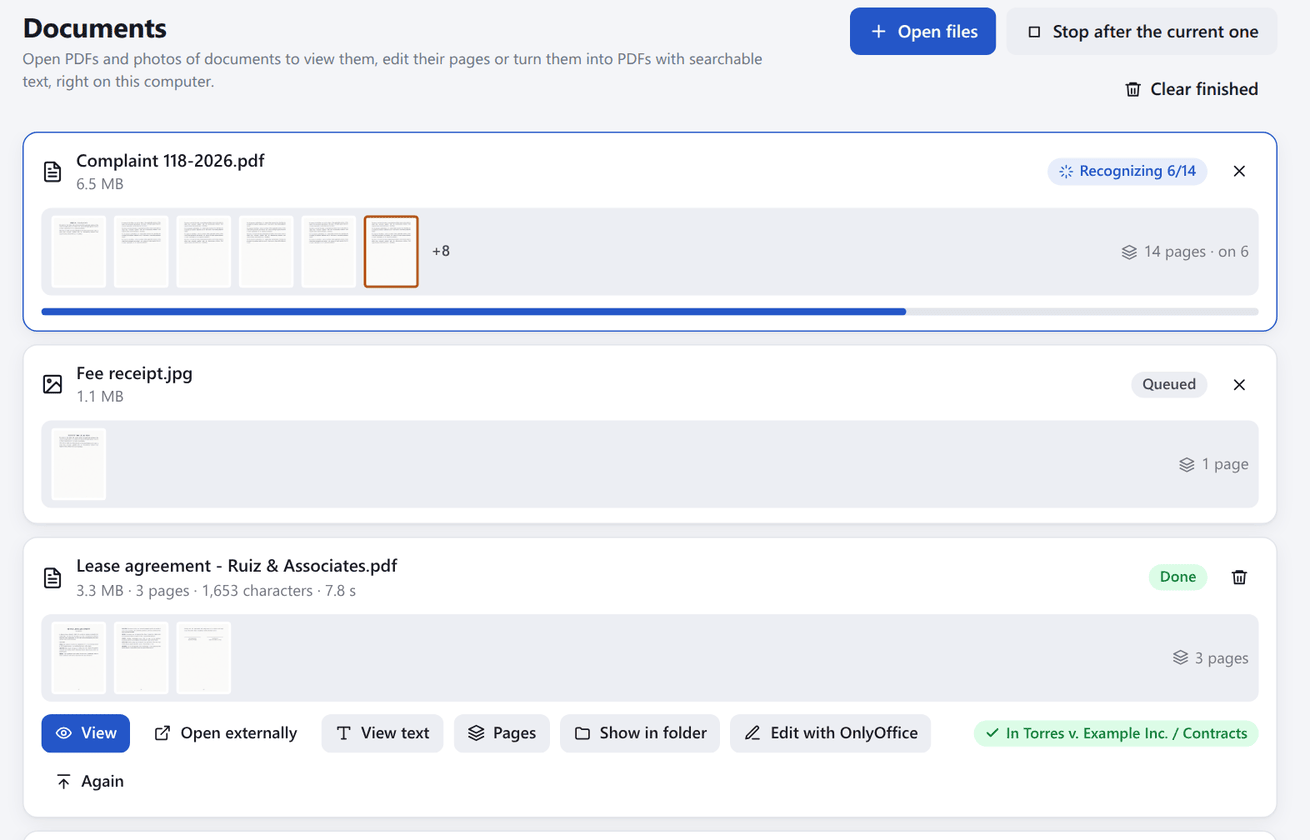
4. Fix the pages before uploading
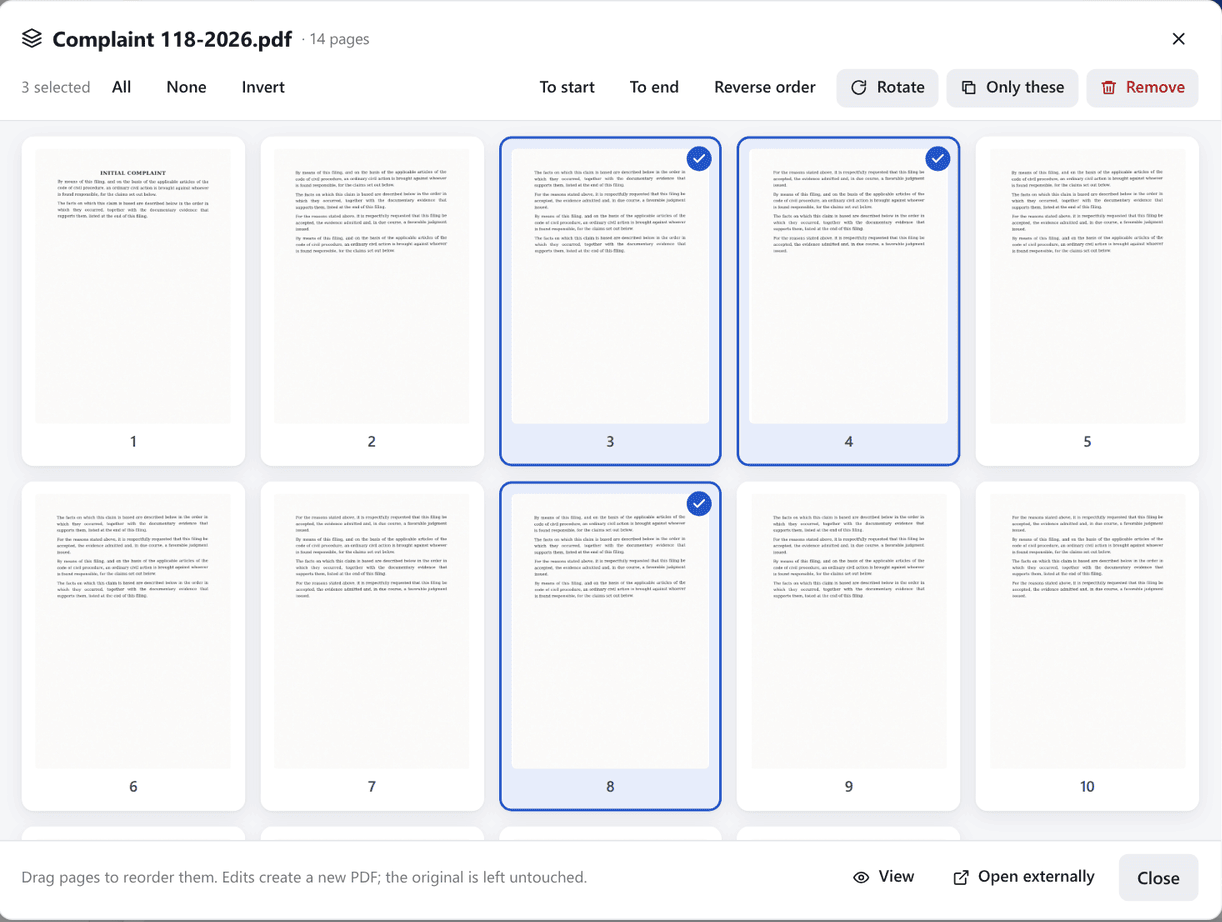
A scan is almost never clean: rotated pages, blank sheets, attachments that do not belong. IureOCR has thumbnails to remove pages, keep only the selected ones, rotate them or reorder them by dragging. Edits create a new PDF; the original is untouched unless you choose to replace it.
5. Redact what must not be shared
Before sending a document out, you can mark areas to redact: the text (including the invisible OCR layer) and the image pixels under the mark are removed for good, and the result is verified; if anything is left, nothing is written. You can also number pages with Bates numbering (prefix, suffix, digits and position).
How to use it in five steps
- Download the installer from the latest release (Windows, macOS or Linux).
- Open or drag in your PDFs and document photos.
- Fix the pages if needed and click Recognize text.
- Check the text in the built-in viewer.
- Save the result next to the original or upload it to an Iurefficient project.
Who it is not for
- The installers are not code-signed yet: Windows and macOS warn you the first time and you have to confirm you want to open them. Download them only from the GitHub releases page.
- On macOS you need to install Tesseract separately (
brew install tesseract); on Windows and Linux it is bundled or installed as a dependency. - It recognizes Spanish and English (more languages if your Tesseract has them). Rescuing unreadable pages with a vision model and merging or splitting PDFs are announced as future work, not something available today.
How it connects with Iurefficient
The result can be saved straight into an Iurefficient project or any folder in the document tree, via WebDAV; if you mount the drive with IureDav, just choose it as the output folder. Because the PDF already carries its text layer, the server indexes it without processing it again. The app shares account and session with the other Iurefficient desktop apps.
In addition, with IureOCR --mcp assistants such as Claude Desktop or Claude Code can ask it to run OCR and read PDFs on your computer, with no external provider key; only the text the assistant chooses to read leaves the machine. The code is at github.com/ellaguno/iureocr.
¿Quieres ver Iurefficient en acción?
Agenda una demostración o empieza tu prueba gratuita hoy mismo.
Solicitar demo